Windows 8.1 is a great operating system that has been around for a while now. It comes with some amazing features and improvements over its predecessor, Windows 8. However, not everyone is a fan of the automatic updates that come with the operating system. If you're one of those people, you'll be happy to know that you can stop the Win 8.1 update. In this article, we'll show you how to do it.
Why Stop the Win 8.1 Update?
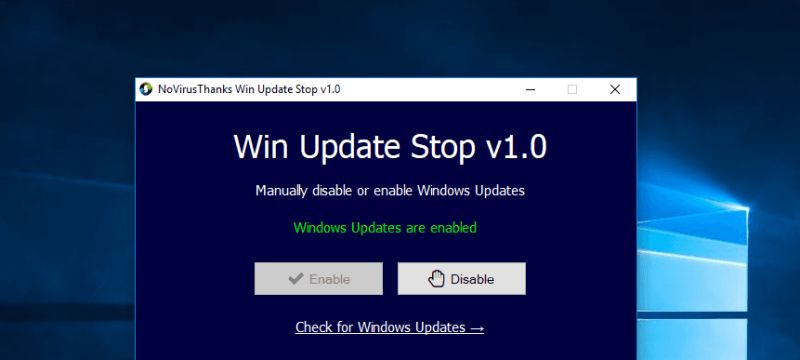
Before we get into the steps to stop the Win 8.1 update, let's first talk about why you might want to stop it. One of the main reasons is that the updates can be quite large and take up a lot of space on your hard drive. This can be a problem if you have limited storage space on your computer.
Another reason is that the updates can sometimes cause problems with your computer. Some users have reported issues with their computer crashing or freezing after installing the updates. If you're experiencing problems with your computer after an update, it might be a good idea to stop the Win 8.1 update.
Method 1: Disable Automatic Updates
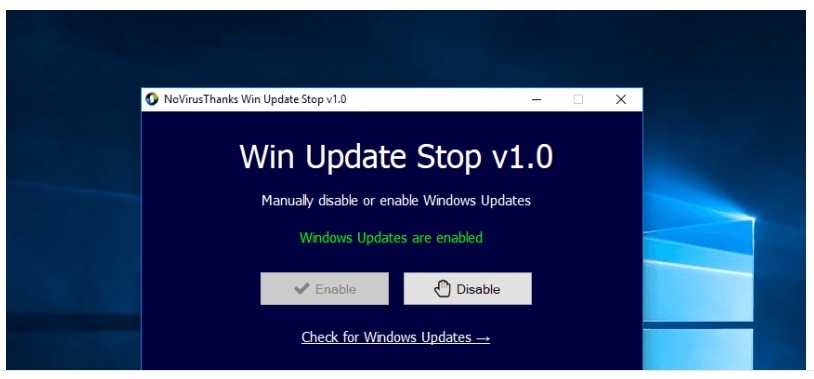
The first method to stop the Win 8.1 update is to disable automatic updates. Here's how to do it:
- Go to the Start menu and select Control Panel.
- Click on Windows Update.
- Click on Change settings.
- Select the option that says "Never check for updates (not recommended)"
- Click OK.
With this method, you won't receive any further updates for Windows 8.1. However, it's important to note that this isn't the recommended method, as it can leave your computer vulnerable to security threats.
Method 2: Use Group Policy Editor
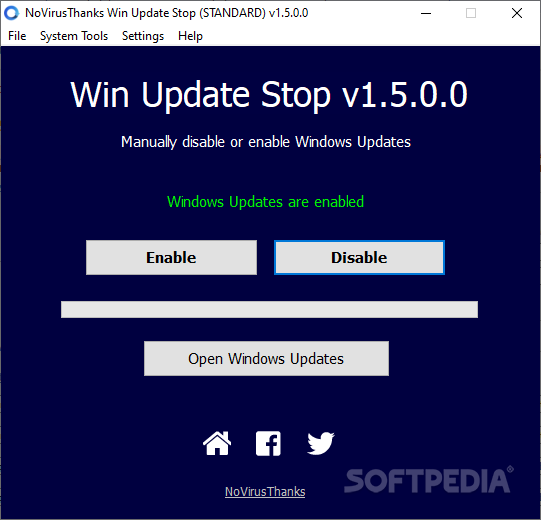
The second method to stop the Win 8.1 update is to use the Group Policy Editor. This method is only available for users of the Professional or Enterprise edition of Windows 8.1. Here's how to do it:
- Press the Windows key + R to open the Run command.
- Type "gpedit.msc" and press Enter.
- In the Group Policy Editor, navigate to Computer Configuration > Administrative Templates > Windows Components > Windows Update.
- Double-click on "Configure Automatic Updates."
- Select the option that says "Enabled."
- Under "Configure automatic updating," select the option that says "Notify for download and notify for install."
- Click OK.
With this method, you'll be notified when updates are available, but you can choose whether or not to install them. This gives you more control over the updates that are installed on your computer.
Method 3: Disable the Windows Update Service
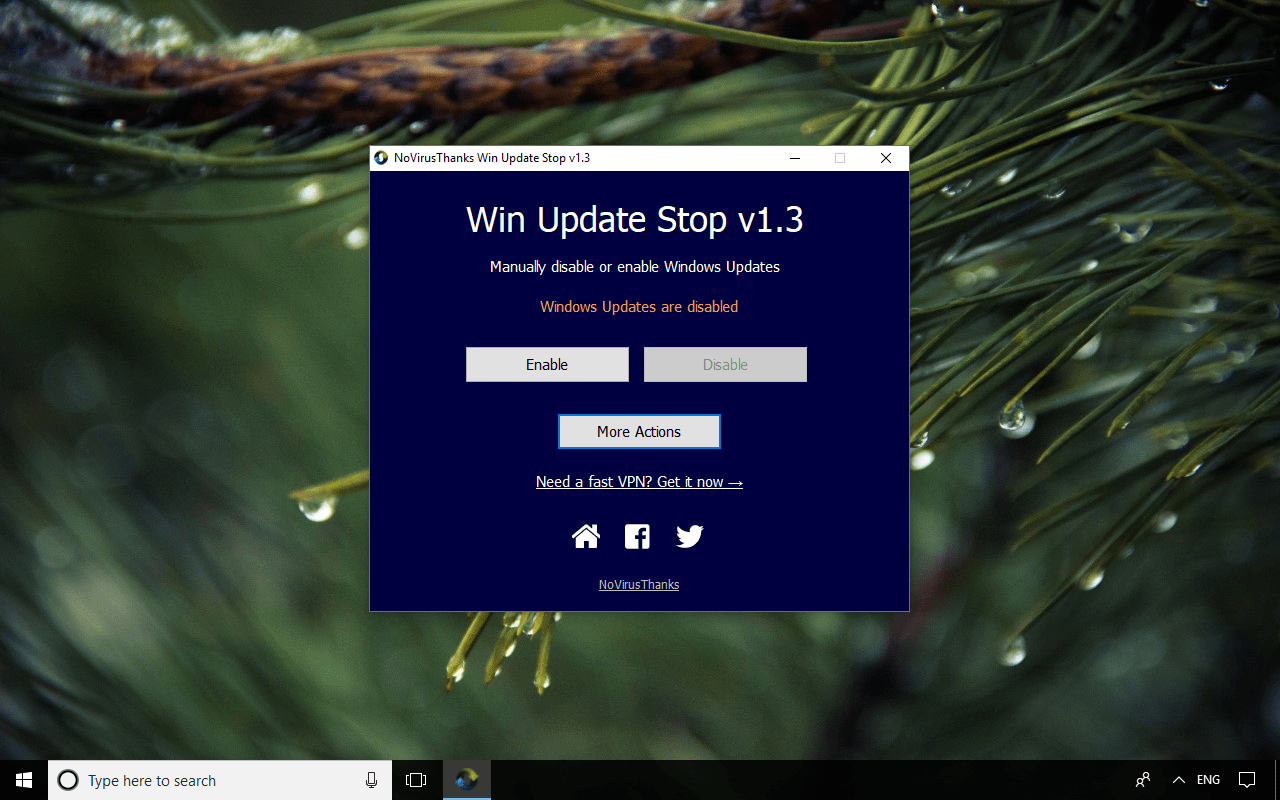
The third method to stop the Win 8.1 update is to disable the Windows Update service. Here's how to do it:
- Press the Windows key + R to open the Run command.
- Type "services.msc" and press Enter.
- Scroll down until you find the Windows Update service.
- Right-click on the service and select Properties.
- Under "Startup type," select the option that says "Disabled."
- Click OK.
With this method, the Windows Update service will be disabled, and you won't receive any further updates for Windows 8.1. However, like Method 1, this isn't the recommended method, as it can leave your computer vulnerable to security threats.
Conclusion
Stopping the Win 8.1 update is something that many users might want to do, especially if they have limited storage space or are experiencing problems with their computer after an update. In this article, we've shown you three methods to stop the Win 8.1 update. While Method 1 and Method 3 aren't the recommended methods, they can be useful in certain situations. However, if you're a Professional or Enterprise user, Method 2 is the best option, as it gives you more control over the updates that are installed on your computer.